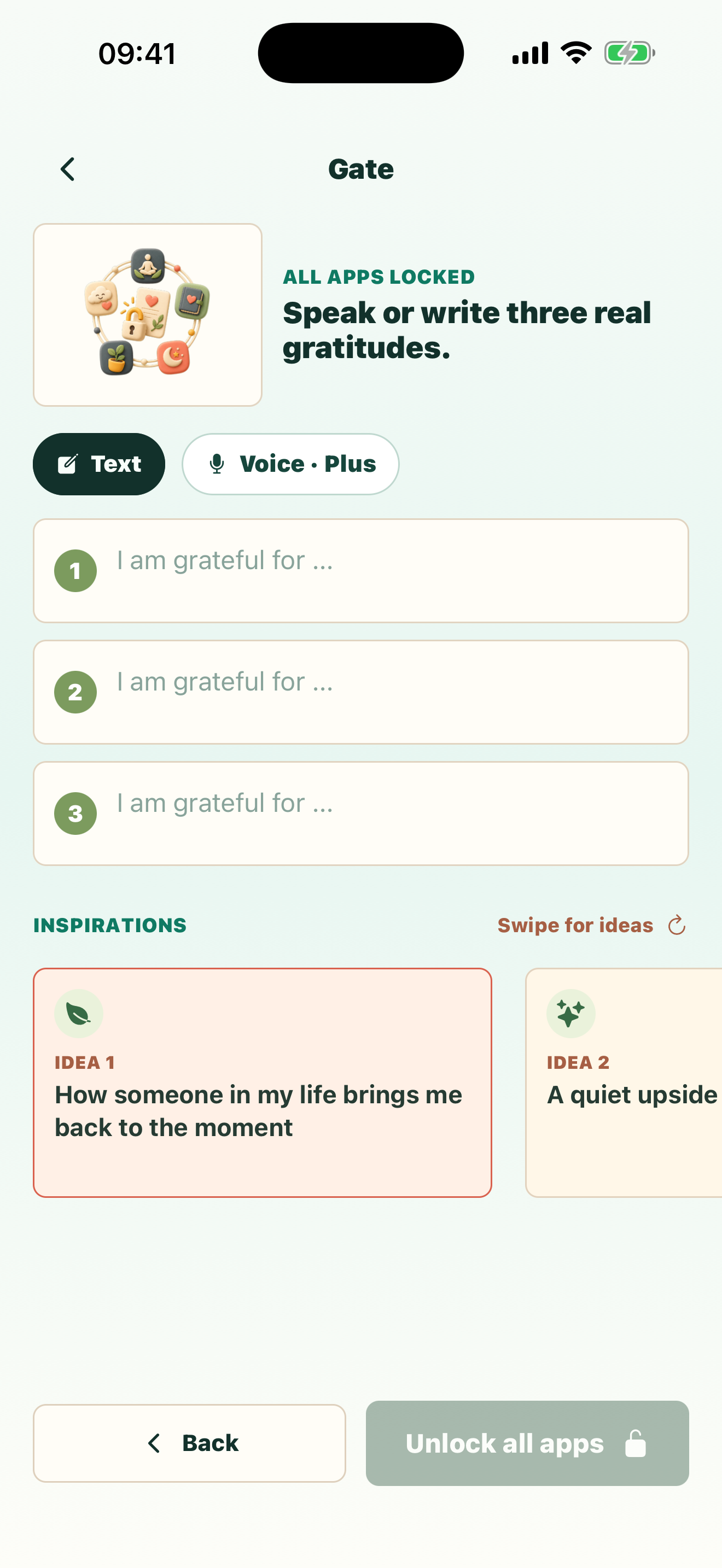
A screen time app for when reports and timers are not enough.
The best first step is already on your phone: use Apple Screen Time or Android Digital Wellbeing to see the pattern and set basic limits. If you still open the same apps on autopilot, GrateGuard adds a small decision point before the session starts.
Interrupts reflexive app opensFree text resets; optional Plus voiceLocal-first privacy model
Use what you already have
Start with the screen time tools built into your phone.
A native setting may be all you need. Test the simplest option first, then add GrateGuard only if the opening reflex keeps getting through.
01
On iPhone: check Screen Time, then add an App Limit
Open Settings › Screen Time. Turn on App & Website Activity if needed, review your usage, then choose App Limits › Add Limit for an app or category. Downtime is better when you want a scheduled window instead of a daily allowance.
Open Settings › Digital Wellbeing & parental controls. App timers set a daily allowance; Focus mode pauses selected distracting apps for a session or schedule. Menu names can vary by device.
If limits become background noise, change the opening moment
GrateGuard is not a replacement for the system dashboard. It uses the platform’s available permissions to place a short gratitude pause before the apps you select, so the next session begins with a choice.
Settings and available controls can vary by operating-system version, device, and permissions.
Why it matters
To reduce screen time, target the sessions you regret instead of every useful minute.
Daily screen time reports tell you what happened after the damage is done.
Built-in limits can become another prompt you dismiss.
You want fewer low-quality sessions, not just a smaller number.
How GrateGuard helps
Block the app, then change the opening moment.
Act before the session starts
GrateGuard gives you a decision point before the distracting app opens, when a small interruption can still change the outcome.
Make the replacement positive
Instead of shame-based blocking, the unlock uses gratitude to redirect attention toward something concrete and personal.
Use one calm unlock session
After the ritual, protected apps open together for the session so you are not repeating prompts across every app.
Setup
A simple flow for intentional app use.
1
Measure one ordinary week
Use the built-in report to find the apps and times of day where your screen time feels least intentional.
2
Set one realistic system limit
Try an App Limit or App Timer for one attention-heavy app instead of changing your whole phone at once.
3
Add an opening pause if needed
Put the apps you still open reflexively behind GrateGuard during your vulnerable windows, then review the pattern after a week.
Questions
FAQ
Is GrateGuard a replacement for Apple Screen Time or Digital Wellbeing?
GrateGuard complements system tools by adding a gratitude-based unlock ritual before selected apps open.
Who is this screen time app for?
It is for people who can still use their phone, but want more friction before the apps that consume attention.
Which apps can I use to limit screen time?
Before installing another app, try Apple Screen Time on iPhone or Digital Wellbeing on Android. Both include reports and app limits. GrateGuard is an additional option when you want a deliberate pause before selected apps open.
How can I reduce screen time without deleting every app?
Start with one high-drift app and one vulnerable time window. Keep essential apps available, use a native timer or focus schedule, and add an opening pause only where you need more friction.
Does GrateGuard sell screen time data?
No. GrateGuard does not sell personal data or use cross-app ad tracking. If you opt in, pseudonymous activation milestones may be processed through RevenueCat, without gratitude text or protected-app names.
Download
Put a gratitude gate before distracting apps.
Choose your store and make app opening a conscious choice instead of an automatic loop.