Set a TikTok time limit for the way you actually scroll.
TikTok offers daily screen time, break reminders, sleep reminders, and a usage dashboard—but each solves a different problem. Use the two-question finder to choose the lightest fitting boundary before adding stronger phone-level friction.
16 iPhone and Android pathsCurrent TikTok instructionsPrivate two-question finder
2 questions · TikTok limit finder
Which TikTok boundary fits your scrolling pattern?
A daily budget, session break, and sleep reminder solve different problems. Find the lightest fitting control first.
01 · TikTok02 · iOS / Android03 · GrateGuard
Your strongest fitting TikTok boundary will appear here. TikTok prompt → device limit → optional opening pause
The boundary ladder
Use the lightest TikTok boundary that changes the unwanted session.
TikTok’s tools and your phone’s controls can work together, but they do different jobs. Start with one level and move down only when it stops helping.
01
TikTok: daily limit, breaks, sleep reminder, and dashboard
Choose daily screen time for a total budget, breaks for uninterrupted sessions, and sleep reminders for bedtime. Use the dashboard to review daily cumulative time and open count for the current week and previous three weeks.
Your phone: App Limit, App Timer, or scheduled pause
Choose Apple Screen Time or Android Digital Wellbeing when the device—not TikTok—should hold the daily allowance or recurring protected window.
03
Optional: a deliberate action before opening
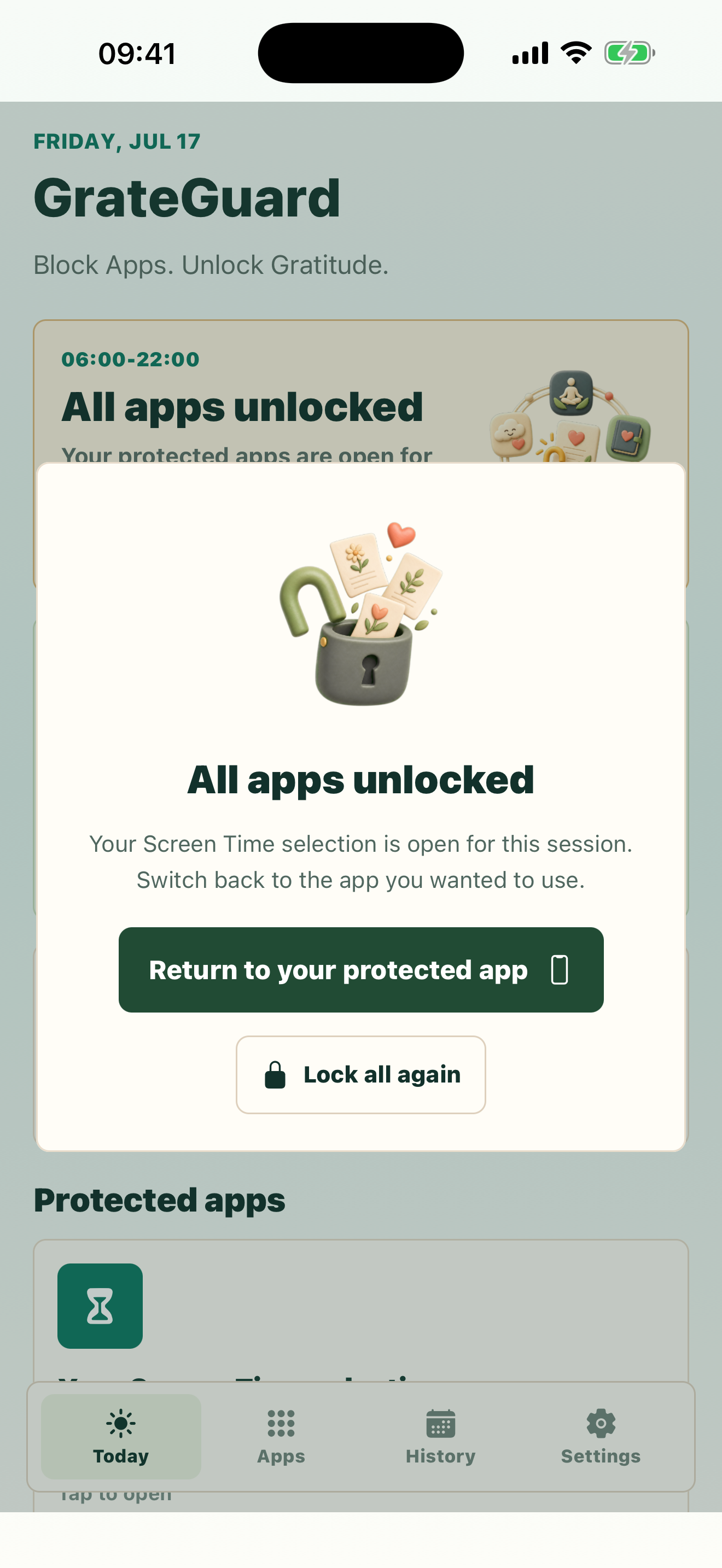
If overrides become automatic, protect only TikTok and the hours that cause trouble. GrateGuard asks for three private gratitudes before the protected session begins.
This guide is for adults managing their own device. TikTok, Apple, Google, and phone manufacturers can change labels, availability, and menu paths.
Why it matters
Daily minutes, one endless session, and late-night scrolling need different TikTok boundaries.
TikTok’s daily screen-time alert appears, but entering the passcode has become part of the scroll.
Your total minutes look acceptable while one uninterrupted session still runs much longer than intended.
A sleep reminder quiets push notifications, yet you can still open TikTok on a self-managed adult account.
How GrateGuard helps
Block the app, then change the opening moment.
Match TikTok’s control to the pattern
Use daily screen time for a total allowance, screen-time breaks for long sessions, and sleep reminders for a recurring bedtime cue. TikTok’s dashboard can show current-week time and opens plus the previous three weeks.
Use the phone when a reminder is too light
Apple Screen Time and Android Digital Wellbeing can place a device-level allowance or schedule around TikTok. The device owner can still change self-managed rules, so test a realistic boundary first.
Change the opening moment only when needed
If passcodes, snooze, or limit extensions have become automatic, GrateGuard can add three private gratitudes before a protected session. It complements native controls instead of replacing them.
Setup
A simple flow for intentional app use.
1
Name the session you want to change
Choose between daily total, uninterrupted scrolling, bedtime use, or repeated overrides. Do not stack every control before you know which pattern matters.
2
Test the matching first-party control
Keep one rule on for seven normal days. Use TikTok’s dashboard to see whether it changes the sessions you regret, not just the reported total.
3
Strengthen only the point that fails
If the TikTok prompt works, stop there. If dismissing it becomes automatic, add a phone-level rule or an intentional opening action without blocking the rest of your phone.
Questions
FAQ
How do I set a time limit on TikTok?
Open TikTok, go to Profile, open the menu, then Settings and privacy › Screen time › Daily screen time. Turn it on and choose your limit. TikTok says the change applies in the app and on the web.
What happens when the TikTok daily limit is reached?
TikTok notifies you. On a self-managed adult account, you can close TikTok or enter the on-screen passcode to return. Treat it as a deliberate exit cue rather than an unbreakable device lock.
What are TikTok screen-time breaks?
They are reminders after a chosen period of uninterrupted use. TikTok lets you dismiss the reminder, snooze it for ten minutes, or edit it, so it is a session interruption rather than an access block.
Does a TikTok sleep reminder block the app?
No. At the scheduled sleep time TikTok shows a reminder and mutes push notifications. A self-managed adult can acknowledge or delay it and continue using the app.
When does GrateGuard help with TikTok limits?
GrateGuard is most relevant when entering the passcode, snoozing, or changing a native limit has become automatic. It adds a deliberate gratitude action before a protected session; it is not an unbreakable lock or parental-control product.
Download
Put a gratitude gate before distracting apps.
Choose your store and make app opening a conscious choice instead of an automatic loop.