How to block apps on iPhone without blocking your whole day.
Start with the controls Apple already includes. App Limits work for a daily allowance, while Downtime protects a recurring window. If those prompts become easy to dismiss, a dedicated app blocker for iPhone can add a different kind of friction.
Three ways to block apps on iPhone, from simplest to most deliberate.
Pick the option that matches the behavior: a daily allowance, a scheduled block, or a meaningful pause before opening.
01
Set an App Limit for a daily allowance
Go to Settings › Screen Time › App Limits › Add Limit. Choose an individual app or category, tap Next, set the daily time, and use Customize Days if weekends should be different.
Go to Settings › Screen Time › Downtime, choose Scheduled, then set Every Day or Customize Days. Review Always Allowed so calls, messages, and essential apps remain reachable. Apple notes that limits can be ignored by default; Block at Downtime changes that behavior when a Screen Time passcode is set.
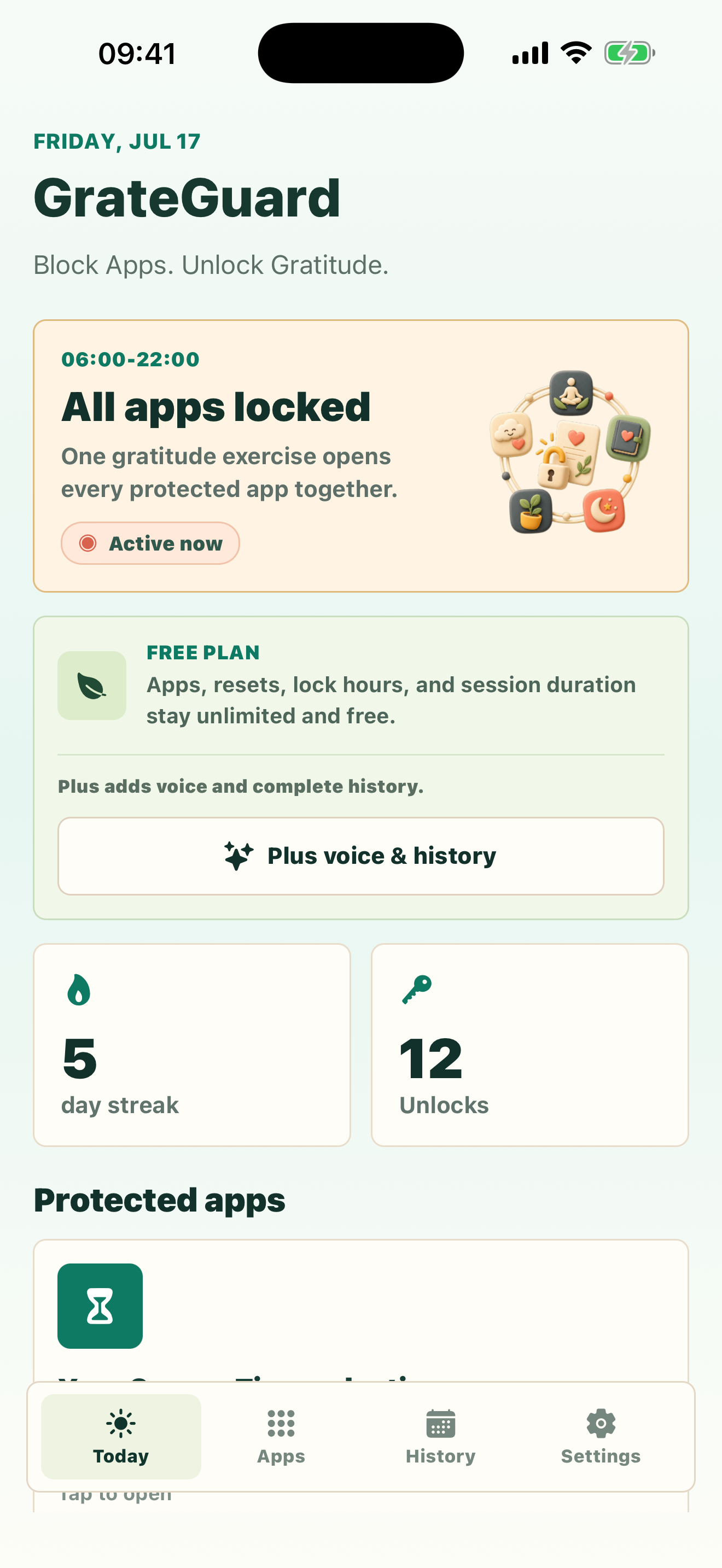
Choose the distracting apps and a lock window in GrateGuard. When you decide to enter a protected session, write three gratitudes; one completed reset opens the protected apps together for your chosen session duration.
Apple may change labels or placement between iOS versions. Follow the linked Apple guide if your Settings screen differs.
Why it matters
Before you block apps on iPhone, decide whether you need a daily limit or a protected schedule.
You want to block one or two distracting apps, not disable everything useful.
A daily time allowance and a scheduled no-scroll window solve different problems.
A warning only helps while you still notice it; repeated prompts can become automatic too.
How GrateGuard helps
Block the app, then change the opening moment.
Choose the lightest tool that solves the problem
Use Apple Screen Time when a timer or schedule is enough. There is no reason to install another app before testing the built-in option.
Keep essential apps available
With Downtime, Apple lets you choose apps and contacts that remain available. With GrateGuard, you select only the apps you want behind the gratitude gate.
Add a meaningful pause, not another warning
GrateGuard asks for three private gratitudes before a protected session. Text resets, custom lock hours, session duration, and unlimited protected apps are free; Plus only adds voice entry and complete local history.
Setup
A simple flow for intentional app use.
1
Name the behavior you want to change
Use an App Limit for “no more than 20 minutes today,” or Downtime for “not during work or bedtime.”
2
Test the native setting for a week
Keep the rule narrow enough to live with and notice whether you follow it when the limit appears.
3
Add GrateGuard only if you need a stronger cue
Protect the apps you still open automatically and place the gratitude gate only across the hours where it helps.
Questions
FAQ
How do I block apps on iPhone?
Open Settings, choose Screen Time, and turn on App & Website Activity if needed. Use App Limits for a daily allowance or Downtime for scheduled periods. If you want a deliberate action before selected apps open, GrateGuard is an additional option.
Can I block apps on iPhone without downloading an app?
Yes. Apple Screen Time includes App Limits and Downtime. During Downtime, you can keep chosen apps and contacts available, and the Block at Downtime setting can make the scheduled restriction stricter.
What is the difference between App Limits and Downtime?
App Limits give selected apps or categories a daily amount of use. Downtime creates a recurring period when most apps and notifications are unavailable except the ones you allow.
Is there a free app blocker for iPhone?
Apple Screen Time is built in and free. GrateGuard also includes unlimited protected apps, text-based gratitude resets, custom lock hours and session duration, and the latest seven days of local history for free.
Can GrateGuard make an iPhone app impossible to access?
No consumer self-control tool should be described as impossible to bypass by its device owner. GrateGuard adds deliberate friction using Apple’s available permissions; it is designed for personal boundaries, not device security or managing someone else’s phone.
Download
Put a gratitude gate before distracting apps.
Choose your store and make app opening a conscious choice instead of an automatic loop.