Turn off the alerts that start the loop
Keep notifications that require action; silence breaking-news, suggested-post, trending, and engagement alerts that exist mainly to bring you back into a feed.
Doomscrolling guide
Doomscrolling is repeated, hard-to-end scrolling through upsetting or alarming content. You do not need to quit every useful app. Start by reducing triggers and using the controls already on your phone, then add more friction only where the loop continues.
Five practical steps
Work from the outside in: quiet the cues, use the phone’s native boundaries, and only then add a dedicated opening ritual.
Keep notifications that require action; silence breaking-news, suggested-post, trending, and engagement alerts that exist mainly to bring you back into a feed.
Take the app off your first Home Screen, remove its widget, or use the web version. A few extra seconds can make an automatic open visible again.
On iPhone, use an App Limit for a daily allowance or Downtime for a scheduled no-scroll window. On Android, try an App Timer, Focus mode, or Bedtime mode. Device menus and available controls can vary.
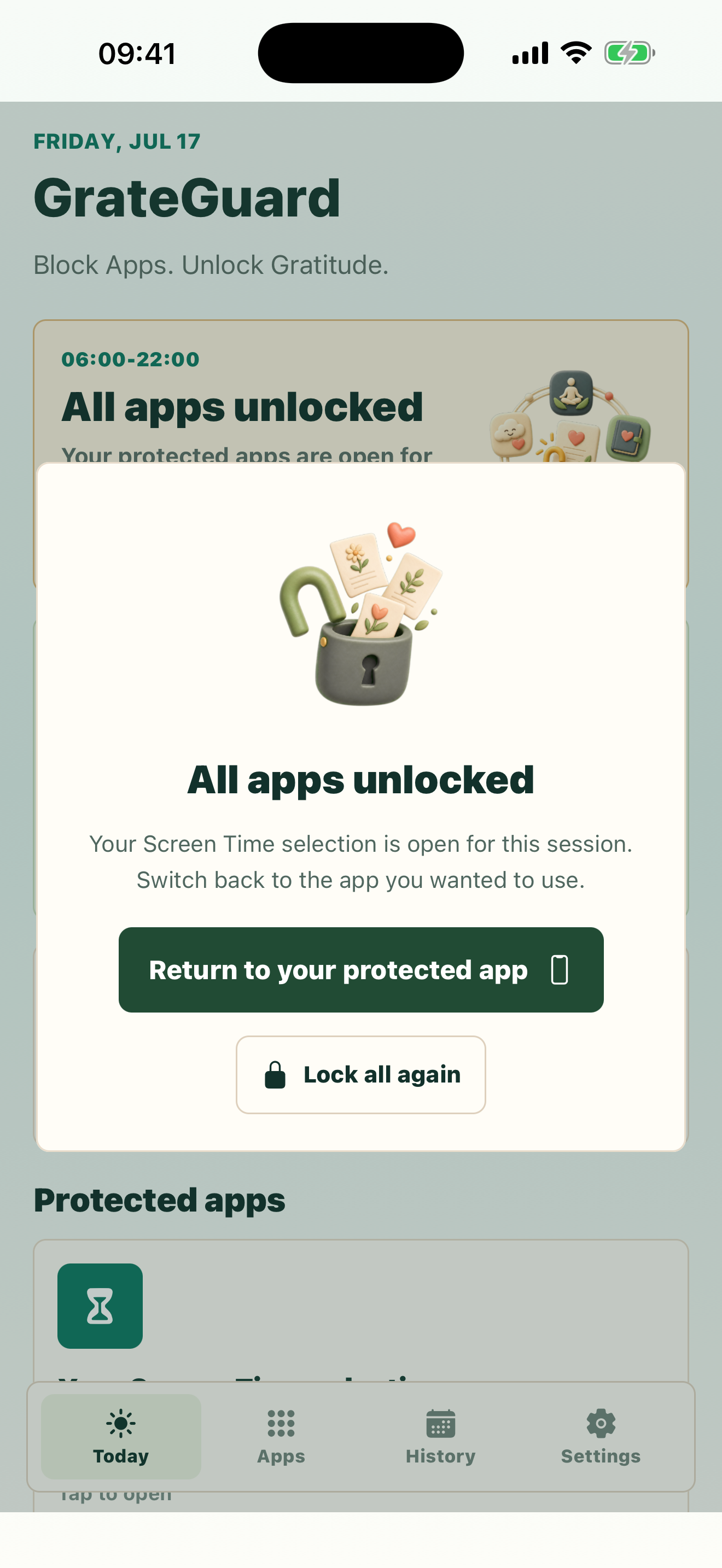
Compare native iPhone and Android optionsPut only the feed apps behind GrateGuard during the times that matter. Three private gratitudes create a deliberate checkpoint before the protected session begins.
Open updates with one question or purpose, choose a short session duration, and leave when that purpose is complete. Review the rule after a week instead of making it permanent on day one.
If distressing news is affecting daily life or feels unmanageable, a qualified professional can offer support beyond what a phone-boundary tool can do.
Why it matters
You open one update and keep scrolling long after you learned anything useful.
The loop is strongest at predictable moments such as waking, waiting, or going to bed.
Trying to rely on willpower puts every decision back into the moment when attention is already tired.
How GrateGuard helps
Remove nonessential alerts, move the feed off your first Home Screen, and choose one or two times to check updates intentionally.
Apple Screen Time and Android Digital Wellbeing can limit apps or pause them on a schedule. Start there; the built-in setting may be enough.
If you still tap automatically, GrateGuard places a short gratitude action before the selected app. It does not judge the content or claim to treat compulsive behavior.
Setup
For two or three days, notice the time, place, and app where scrolling starts. Choose one recurring trigger, not every phone habit.
Decide when you actually want updates, then protect the time before sleep, after waking, or during focused work.
Keep the boundary that helped, loosen one that created needless friction, and strengthen only the app or time that still pulls you in.
Questions
Doomscrolling commonly means repeatedly scrolling through distressing or alarming updates, often longer than intended. It is a description of a behavior, not a diagnosis.
Turn off nonessential news and social notifications, charge the phone away from the bed if practical, and schedule Downtime on iPhone or Focus mode or Bedtime mode on Android. Protect only the apps that start the loop so essential communication remains available.
An app can add a timer, schedule, or opening pause, but it cannot make the decision for you. Try Apple Screen Time or Android Digital Wellbeing first. GrateGuard is useful when you want a deliberate action before selected feeds open.
No. Deleting an app can help, but a narrower plan may be easier to keep: remove alerts, choose check-in times, and add friction during the windows where scrolling is least intentional.
No. GrateGuard is a wellbeing and productivity tool for creating personal phone boundaries. It does not provide medical or psychological treatment.
Download
Choose your store and make app opening a conscious choice instead of an automatic loop.