How to block apps on Android without making your phone unusable.
Start with the controls already on your phone. Digital Wellbeing app timers work for a daily allowance, while Focus mode pauses selected apps during a session or schedule. If you keep changing the timer or tapping from habit, GrateGuard adds a short action before the protected app opens.
Android system options firstUnlimited GrateGuard app protection is freeApp activity stays on your device
Built-in route first
Three ways to block distracting apps on Android.
Start with the least complicated option. A daily timer, a focused schedule, and a meaningful opening pause solve different problems.
01
Set an app timer for a daily allowance
Open Settings › Digital Wellbeing & parental controls › App timers. Choose the app, set the time you want to allow, and confirm. Work or school accounts may restrict this feature.
In Digital Wellbeing, choose Focus mode, select the distracting apps, then start it manually or add a schedule where your device supports one. This is usually a better fit for study, work, or bedtime than a daily minute allowance.
Use GrateGuard when you want to change the opening moment
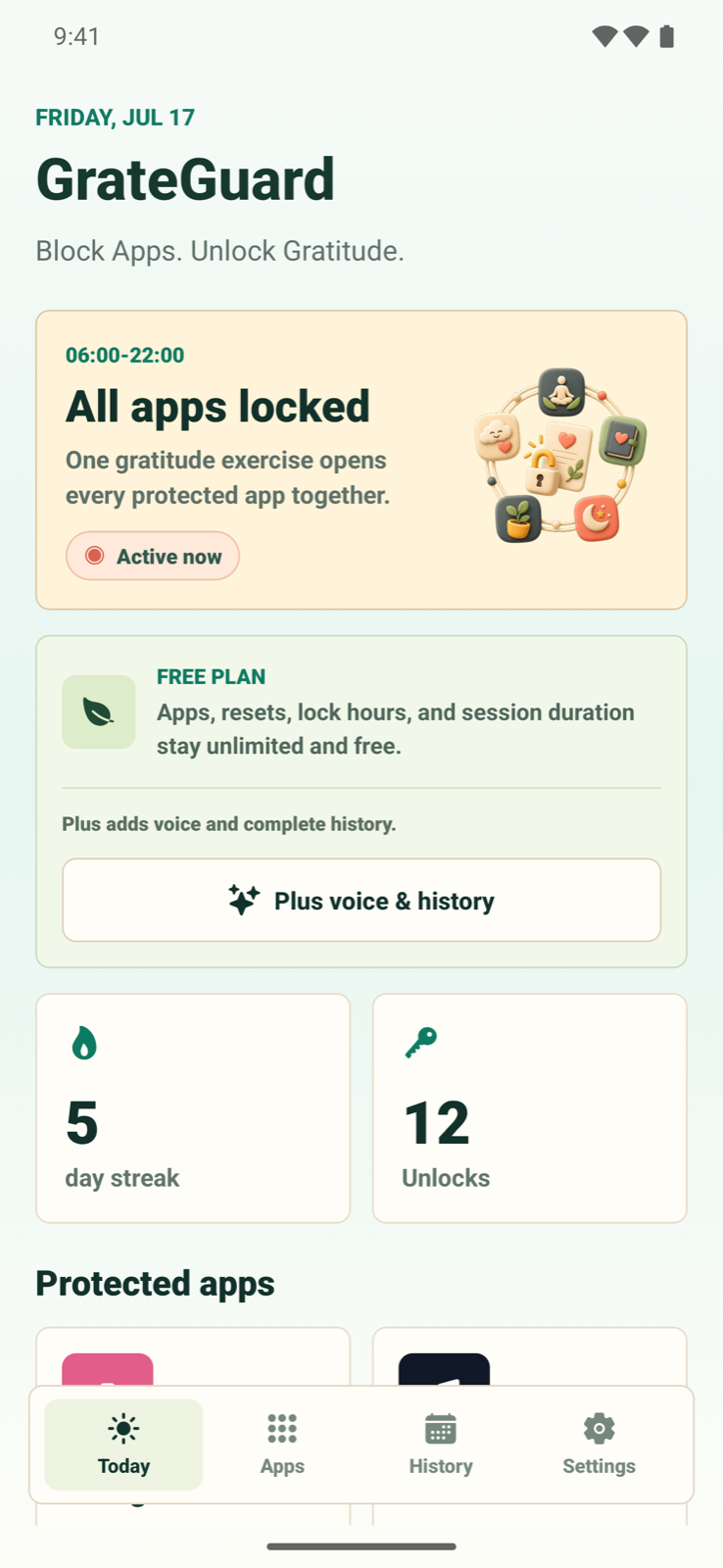
Select the apps and lock window in GrateGuard, read the in-app Accessibility disclosure, and enable the service in Android settings. A protected open returns to GrateGuard; completing three private gratitudes starts the shared session.
Android settings differ across manufacturers and versions. Follow the linked Google guide and your device’s labels if the menu path is different.
Why it matters
Choose the Android control that matches the moment you want to change.
You want a daily cap for one app, not a blanket restriction across your phone.
The distracting window is predictable, such as study time, work, or late evening.
A timer reports the limit, but it does not always interrupt the reason you opened the app.
How GrateGuard helps
Block the app, then change the opening moment.
Use Android’s built-in timer first
Digital Wellbeing can set a daily timer for an individual app. When the time runs out, Android closes the app and dims its icon until the timer resets or you change it.
Pause a group of apps with Focus mode
Focus mode is useful for a work, study, or evening window because it can pause selected distracting apps together. Availability and menu names vary by device maker and Android version.
Add a deliberate opening ritual
After you explicitly enable Accessibility, GrateGuard locally detects when a selected app opens and returns you to a three-gratitude reset. It does not read the app’s content or send the selected app name to GrateGuard servers.
Setup
A simple flow for intentional app use.
1
Pick one repeat offender
Use the Digital Wellbeing dashboard to find the app you open most often without a clear purpose.
2
Test one native limit
Try an app timer for a daily allowance or Focus mode for a recurring no-scroll window. Keep essential communication outside the rule.
3
Add GrateGuard only if the opening reflex remains
Choose the same app in GrateGuard, review the Accessibility disclosure, and use the gratitude gate during the hours where another pause would help.
Questions
FAQ
How do I block an app on Android without downloading anything?
Open Settings and look for Digital Wellbeing & parental controls. App timers set a daily allowance, while Focus mode can pause selected apps for a session or schedule. Names and availability can differ by device.
What happens when an Android app timer runs out?
Google says Android closes the app and dims its icon for the rest of the day. The timer resets at midnight, and the device owner can remove or change it before then.
Why does GrateGuard request Accessibility on Android?
GrateGuard uses Accessibility only to detect locally when a protected app opens and redirect that opening to the gratitude gate. App-use signals and selected app names are not collected or shared by GrateGuard.
Can an Android app blocker be impossible to bypass?
Not for a device owner who controls system settings and permissions. GrateGuard is a personal-boundary tool that adds deliberate friction, not parental control, device security, or a claim that access is impossible.
Download
Put a gratitude gate before distracting apps.
Choose your store and make app opening a conscious choice instead of an automatic loop.